Wednesday, March 26, 2014

Bing Maps in Excel

Just a very quick and fun feature in Excel 365 (or 2013) is the ability to add a Bing Map and plot locations from a data set in your spreadsheet.

To try this open a new Excel spreadsheet, click on the Insert tab and then select Bing Maps under the Apps section.


This will insert a new Bing Map in the center of your table, it will also offer to insert sample data for you. 


We will close the window offering the sample data and then move and re-size the map.

To move the map, click on its edge, where you will see the cross arrows, now just click and drag.
To re-size, again click on its edge, but this time use the drag handles to re-size the map.
You can also zoom in and out or drag the the map to your desired location.


So now you have your map to the correct size and moved to where you want it, lets enter some data. 
Use a header, lets use Places, then enter a list of the places where you want pins to be placed on the map.


Now highlight the cells that contain the header and the place names. You are best to highlight more cells in the column if you are going to add more place names to be plotted.
This is column J in this example.

Once highlighted, click on the pin icon at the top of the map app, as shown below.


The map will automatically plot and zoom into the plotted area as such.


Very quick and simple, it will even does postcodes and countries also, try it.

Also try adding the Place header and one location, now highlight the cells that will contain the place names (or postcodes). Now each time you add a location the map will zoom in or out appropriately to include the new place name.


Now, say I really wanted to plot Coleraine as Coleraine USA, not Northern Ireland, then just put a comma after Coleraine and add USA ( Coleraine, USA )
If in doubt, do add the country as well as the town / city. 
The map will re-plot and zoom to cover all plotted locations.


Not all that useful on its own, but add a data set, say that contains sales figures, locations, etc. Also add a graph from this data set, this will very quickly enhance any presentation without much effort.
As always, the best way to learn and discover more is to play about with it, enjoy.


Tuesday, March 25, 2014

Basic PivotTable

PivotTables a probably one of the best features of Microsoft Excel, most people have not bothered too much with them as they think they might be very complicated or not that useful. 

In this blog, I hope to show you just how easy they really are and hope that my example will give you some inspiration on what you can use PivotTables for. 

I am going to use a scenario of a boat sales yard, it has 3 sales people and 3 types of boats that they sell. 
Not very imaginative, I know but this will keep it simple and give you a good grasp of the power of PivotTables. The data set consists only of the columns containing the Month the sale was made, the sales persons Name and the Model of boat sold:


So we can see we have 31 sales in a 3 month period. The data has just been recorded but is not really much use in this format. But with a couple of clicks on the mouse, it will be a lot more presentable and understandable.

First we will open the worksheet that contains the data set of the sales. 
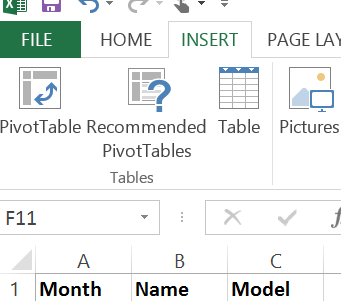
Now open the Insert Tab at the top, and select the PivotTable icon


The Create PivotTable input box will appear. If the Table Range (highlighted below) is empty, just click in the text box and select the range you require, including the headers and select OK.
I have selected for the PivotTable to be created in a new Worksheet.


A new sheet will now appear with the following, do not be put off by what you see, it really is very simple, I will explain.
We will concentrate on the image to the right (PivotTable Fields), the image on the left is where the results will be displayed.


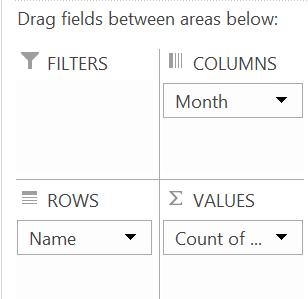
As you can see, Month, Name and Model are displayed in the PivotTable Fields area and below that are four sections called Filters, Columns, Rows and Values.

So, remember we had 31 rows of data that really did not make a lot of sense. This really is how useful and easy PivotTables are.
Just drag the Name (as highlighted in green above) into the Rows section as below, repeat for Month and Drag the Model into the Values section.


And this is what the PivotTable returns for you:
Here we can see the total sales figures broke down by the sales person and further by the month.


By simply moving the Month above Name in the Rows section, you will get it broke down by the Months first, then the sales person.


This happens immediately without having to do any further formatting or input.

Say we wanted the data displayed like this:


Then just set the order as putting the Month in Columns, Name in Rows and Model in Values:


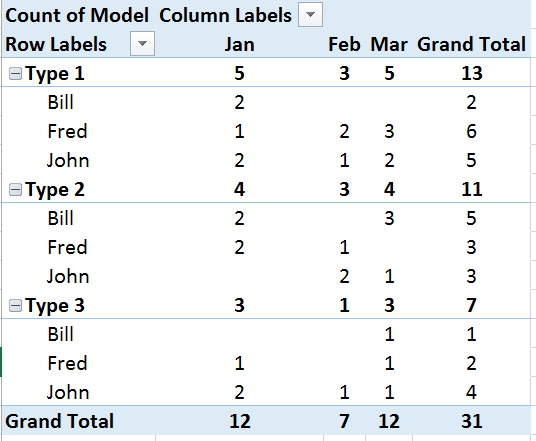
Now by simply dragging the Model into the Rows the result will be broke down by the type of boat sold by each person for each month, giving a more detailed, useful and understandable data set.


Drag the Model above Name to group by the Model rather than the Name and the data set will be displayed as such:


So there you have it, I hope you will agree that PivotTables are really simple and will be very useful for displaying data in a more meaning and presentable manner.
PivotTables are the gem in Excels crown.

As always, this was a very basic tutorial, and the best way to learn and discover more is to play about with it, enjoy.


Note, I used Microsoft Excel 365 in this example, but the Pivot Table has existed in MS Excel since 2003 (at least) 


Wednesday, September 4, 2013

VLOOKUP - Auto populate cells based on a value of another cell

Searches for a value in the first column of a table array and returns a value in the same row from another column in the table array - As explained by Microsoft..

Okay in this example, I am going to use employee details and again, keep it very simple..
We have a spreadsheet with the employee details as shown below:


In another sheet or even spreadsheet, we want to get the phone number for one of the employees based only on their Employee ID number....
There are a few simple steps to this:

  • First off, create a list based on EmpID as seen in the Blog - Drop Down List
  • Now click on the cell you want to be auto-populated (we are going to add the first name, last name and phone number, so this will be repeated in 3 cells).  If you have read this far, your probably best using the formula wizard found under Look Up & Reference in the Formulas Tab as below (Excel 2010).  

  • A window will appear asking you input the arguments for the function as below

A quick explanation of this window:
  • The Lookup_value is the cell containing the list..  We are using EmpID, click in the text box and then click on the cell containing the list.
  • Table_array, this is the area of the sheet that contains the info you want returned..  Again, click on the text box and then highlight the cells containing the required info, first name, last name and phone number..  Don't worry if you have to include other cells, in our example we have to include StartDate and Dept..
  • Col_index_num, this is the index of the column that will return the requested data.  Our example has last name, then first name in the original data set, but we want to show the first name followed by the last name, then the phone number, so enter 3 here for the third column which contains the first name. 
  • Range_Lookup, this is a logical - True or False argument, where False equals that you want an exact match returned and True means that you want the closest match returned..
Now follow the above steps for the last name and phone number in your desired cells, most probably next to the first name..

Before you use the formula wizard for all three, read below, it is faster either writing the formula or copy and paste, you will only need to adjust the Col_index_num for last name and phone number..
Remember last name was first in the original data set, so we used 3 as the column index for first name, now use 2 as the column index for the last name, and you have changed the order of the way the name is displayed..


The Formula
If you are like me, and would rather input the formula here it is:
=VLOOKUP(B3,Sheet1!A2:F5,3,FALSE)

Note the 4 arguments: 
Lookup_value = B3
Table_array = Sheet1!A2:F5    (the data set is on Sheet1 and is held in cells A2 to F5)
Col_index_num = 3    (this is the first name column)
Range_Lookup = False  (we want an exact match)

There is also hlookup, used for rows...


For Aries 


Friday, December 28, 2012

Embedded Chart (Graph) in MS Word or PowerPoint

In this blog I aim to show you how to easily create a chart in a Word document or in PowerPoint, say for reporting or a presentation..  We will use the scenario of counting types of vehicles passing a given location over the period of a month.  We will group the vehicle type by 4x4, Lorry, Bus, Car & Motorbike.  Again, you can apply this to anything you see fit..  Most reports are in reality generated from data, the system is automated, but for a small company or individuals that have to send out a daily report and do not have the benefit of an automated system, this will work fine..  I will show how to apply charts in MS Excel soon, where is reality most data will be stored.

Section 1: Creating the Chart

  • Open a new Word document (or the current daily report) 
  • Now go to the Insert Tab & Select Chart, there are many different types of charts to choose from.  As always, I will show the basics here and let you play about to discover more.  So for this blog, I will select the Default Column Chart..
  • Once you select your chart, it will displayed on the Word document and an instance of MS Excel will open with a small table which you can adjust, as seen below:


  • The basic table has 3 columns & 4 rows of data.  We require 31 days and 5 vehicle types.  I am going to create the dates (1 - 31) in cells A2 - A32 and vehicle types in cells B1 - F1, so dates down the side and vehicles alone the top..
  • Below the table it tells you how to resize (To resize chart data range, drag lower right corner of range.)  So resize the table now by dragging the lower right corner to cell F32 & delete the resize text...  You will notice the chart has changed on the Word document.
  • Ok, now we want to name out vehicle types and show 31 days.  So along the top in B1 type 4x4, C1 - Lorry, etc to F1 - Motorbike...
  • In cell A2 type 1 & use Fill Series to auto-populate the cells to A32  (as shown in a previous blog - Filling cells quickly - Fill Series)
  • You will now see the days of the month along the bottom and the vehicle types colour coded on the right.  We have not deleted the data yet, so will show some bars in the bar chart.  Delete the data now(cells B2 - D5), and the bar chart will be clear..
  • Now add your own data for the first of the month.  Not very impressive, but don't worry as the days pass the chart will build up and be more impressive.  
  • Now, just close the Excel sheet as it is saved through Word when you save the document.
  • To edit the data, just Right Click on the Chart and select Edit Data from the popup menu.  Note that the chart type, colours and legends can all be changed anytime, so play about with it to you find something you like..
Added extra - I want to see how the chart looks fully populated, but rather than type the data for 5 vehicle types over 31 days (155 cells), I have used the RANDBETWEEN function to give me random number between 2 given numbers and pasted it into each vehicle type column..  Here are the functions:
=RANDBETWEEN(10,30)  For 4x4, you can just copy and paste =RANDBETWEEN(10,30)  into the formula bar and set your own numbers.  Remember, this is just to populate the chart (to see how it looks) before you use real data and submit the report...
=RANDBETWEEN(10,40)   Lorry
=RANDBETWEEN(20,60)   Bus
=RANDBETWEEN(55,350) Car
 =RANDBETWEEN(5,15)    Motorbike

Below is the "test" chart:

Thursday, December 27, 2012

Dates & Conditional Formatting

Okay, its been a few days since my last post..  Its Christmas holidays, but no excuses, so going to add a quick post to cover the scenario of having to maintain a fleet of vehicles.  Lets say they have to be serviced every month or 5000 miles, which ever occurs first.  I will split this into two sections, the first will cover the simple Date function and the second will give an overview of conditional formatting..
Once again, this post will just show the very basics, play about with your own data and ideas to discover more.

Section 1: Adding today's date to your sheet when it opens.
  • Open & format your new spreadsheet, pick a cell that you want to display the current date in and type =TODAY()    
  • When the spreadsheet is opened the selected cell will display the current date, as per your system clock.  This is seen below, where the cell B1 has =TODAY() inserted and displays the date.


So now we have the current date, we will add our data, I will just use the basic details for five vehicles as shown in the data set below..  With only five vehicles its pretty easy to see which vehicle needs the next service going by date alone.  Its a bit more difficult to identify which vehicle is coming close to doing 5000 miles since the last service and would be extremely difficult to arrange timely services for over 100 vehicles..


Section 2: Conditional Formatting based on cell values.
  • We will use this data set for simplicity:


  • Note: the current date on the top left and the date of last service in the right column..  We also have the current miles and last serviced miles recorded, so we can easily workout when the next service is due..  But, why not let Excel do the working out???  So by adding a column for how many miles to the next service and a column for how many days to the 4 week service is due (if the miles are low and we are going to service on days rather than miles).  
  • To workout the miles left, add 5000 to the last service and takeaway the current miles.  Use this formula:  =SUM((I3+5000)-F3)   where I3 holds the recorded miles of the last service and F3 holds the current miles on the vehile.  Note that if the vehicle has done more than 5000 miles since the last service it will show a negative number.  This is a true representation as can be read as -500 miles or 500 miles overdue...
  • To workout the days left, add 28 (for 4 weeks) to the date of the last service and takeaway the current date. Use:  =SUM((J3+28)-B1)   You could use  =SUM((J3+28)-TODAY())   to get the date on the fly, without having to reference the cell B1...
  • So here is the updated data set, as you can see it is a lot more User friendly in that we can see that the second vehicle is 1000 miles overdue its service and the last vehicle is due a service tomorrow. 


  • So, easy as that is now to see when services are due, we will add a bit of formatting to have the info stand out even more, again if working with over 100 vehicles, services could be missed just using this system ..

  • First we will check the miles and highlight as the vehicle gets close to 5000 miles from last service.  I will have 2 scales of when to alert the User, the first will be at say 500 miles left to the service.  This will inform the User that the service is due soon and should be booked etc.. The second alert will be at 200 miles, meaning it is time to get the vehicle serviced.   You can add as many alerts and at whatever miles you want.  I will also add an overdue highlight that will standout as the vehicle must get serviced asap..
  • To do this, highlight the cells containing the miles to the next service, click on Conditional Formatting & select New Rule, then from the new formatting rule, select format only cells that contain.  


  • As you can see, I have selected Cell Value, set it to less than or equal to, and set the value to apply the conditional formatting at 500.  Now set whatever formatting you want by clicking on the Format button.  
  • Now to set the 200 mile alert, just repeat the steps above (as for the 500 mile alert) but this time enter 200..  But make this one stand out a little more than the last, time is getting critical...
  • Now lets add a brazing highlight to show that a vehicle is overdue it service..  Again, you can add more levels here, as it may not be a real big deal if the vehicle is a couple of hundred miles over, but if 500 miles over it may break the rules of contract and should not be used..  So, again repeat the steps above and make it stand out..  See below:


  • As mentioned, the same can be done with the dates, why not play about with it yourself and try it...  Try things like highlighting the whole row and adding more alerts.
  • Note:  A good way to ensure you don't miss any is to carry out quick a sort on the column for miles to next service, this will show the vehicles ordered by when they are due their next service.  If you have vehicles allocated to teams or in order, just cancel the sort when you have the info you want..

Sunday, December 16, 2012

Add values only if a criteria is met (sumif)

In the Running Balance Sheet post, I said I would do a post to allow you to group outgoings.
So this post will cover that, aimed at a balance sheet.  I will create a simple balance sheet as in example 1 in the running balance sheet post, but will add a column for a category.  The category use a drop down list as explained in the last post - drop down list..  This will ensure the User enters the exact category in which a withdrawal is assigned to, it prevents misspelling and abbreviation which permits correct calculations on each category..
All we are going to do is sum as per normal, but add "if" and enter the category title, the function will then only sum the values of that specified category..  All really simple, so lets get started.

Example 1: Summing values of a specified category, in this post I will record exactly each step while creating the spreadsheet, as always there are more options to play with..

  • Open a new spreadsheet and add the titles in cells A3 through to E3, then bold (ctrl & b):  Date, Deposits, Withdrawals, Category & Comments
  • Now click on the the A column header and drag mouse to the E column header, this highlights all rows in these columns.  Now resize the columns by placing the mouse pointer between say B & C headers, click and drag to the right to make all columns wider..
  • Formatting the cells - highlight the cells B4 to say, C400 (I am only formatting to row 10 in this example), now right click and select Format, and format as "Accounting"..
  • In cell H3 type Cat 1, then right click on the lower right corner of the cell and drag down to cell H5, when released select the "Fill Series" from the pop up menu, now we have Cat 1 to Cat 5 in a list.
  • Click in cell D4 and click on the Data Tab, then Data Validation and list from the window that appears.  Now click in the "Source:" input box and then click on the cell H4 and drag to H7.  Now click OK and you will see a drop down icon next to cell D4...
  • Now click on the cell D4 & copy (ctrl & c), then select cells D5 to say D400 and paste (ctrl & v)..  These cells will all now have a drop down list with an absolute reference to our create list..
  • Now just populate the table with some data..
  • With the data entered, we can now calculate the Total cash out and the Running Total..  I have put the labels in cells D1 & D2, shaded them grey and added borders so it stands out.  
  • In cell E1 type: =SUM(C4:C400)  or just copy and paste this..  The Total Withdrawals is now displayed in cell E1..  
  • In cell E2 type: =SUM(B4:B400)-SUM(C4:C400)    or just copy and paste again..   The current balance is now displayed in cell E2..
  • So next we want to know how much was spent on each category... In this example, I will just use Cat 1 & Cat 2..  As above, put labels in cells A1 & A2, format as above..  
  • To calculate what was spent in Cat 1 use the sumif formula, so it is only adding if the category is Cat 1..  As you start to type sumif, excel will advise you of how the formula is made up..  Range is the where your Categories are named, Criteria is what you want to sum on, ie Cat 1, put this in quotes - "Cat 1"  and [sum_range] is where you want to calculate from, ie the Withdrawals column


  • Type or copy and paste the formula: =SUMIF(D4:D1400, "Cat 1",C4:C400)   This formula is looking in the cells D4 to D400 for the string "Cat 1", each time it finds a Cat 1 it will then look in the relative C column and add if there is a value.
  • To do the same for Cat 2, just copy the formula and change Cat 1 to Cat 2..
  • Note: When writing a formula, if you click in any cell it will map that cell to the formula, this has cause a lot of frustration to a lot of people that thought they could just click off the cell they are writing the formula in..  You cant without changing the formula, best either press enter or click on the green tick to left of the formula bar..